
devsync
Edit locally, run remotely.
devsync is for working on one machine and running the code on another: a GPU server, a lab workstation, a cloud VM, an embedded board. It is built for networks that drop.
- You (or a coding agent such as Claude Code) edit files locally, at full speed, with any editor. Nothing freezes when the network does.
devsync exec -- pytestsends the changed files, runs the command on the remote in the matching directory, streams the output, keeps the exit code, and copies back files the command generated.- Commands run detached on the remote. Every exchange is a short ssh
session, so a dropped connection only delays output and never kills the
command. Results are collected into
.devsync/jobs/<id>/on your machine. - Nothing needs to be installed on the remote: devsync uploads its own small static agent over ssh.
Where to go next
- Install devsync, then follow the quick start.
- Using Claude Code or another agent? See Coding agents.
- Prefer an editor UI? See the VS Code extension.
- Curious how it survives bad networks? Read How it works.
Installation
devsync is installed only on your local machine. The remote just needs an ssh server; devsync uploads its agent there automatically the first time it connects.
Supported platforms
| Role | Platforms |
|---|---|
| Local machine (client) | macOS (Apple Silicon, Intel), Linux (x86_64, arm64) |
| Remote machine | Linux x86_64 and arm64 (any distribution: the agent is a static binary); macOS with the same architecture as the client |
Quick install
curl -fsSL https://raw.githubusercontent.com/umerghafoor/dev-sync/main/install.sh | sh
The installer:
- detects your OS and CPU and downloads the matching release archive,
- verifies it against the release’s
SHA256SUMS, - installs
devsyncto~/.local/binand the remote agents to~/.local/share/devsync/agents, - adds
~/.local/binto your shell’sPATH(zsh, bash or fish) if needed, - installs the VS Code extension when VS Code’s
codecommand is available.
Open a new terminal afterwards and check with devsync --version.
Options go after sh -s --:
curl -fsSL https://raw.githubusercontent.com/umerghafoor/dev-sync/main/install.sh | sh -s -- --version 0.1.0 --no-vscode
| Option | Effect |
|---|---|
--version X.Y.Z | Install a specific release (default: latest) |
--prefix DIR | Install under DIR instead of ~/.local |
--no-modify-path | Don’t touch shell startup files |
--no-vscode | Skip the VS Code extension |
--from-source | Build from the source checkout the script is in |
--uninstall | Remove devsync, its PATH line and the extension |
If you prefer not to pipe into sh, download install.sh, read it, then run
sh install.sh.
From a release archive
Download the archive for your machine and SHA256SUMS from the GitHub
Releases page, then:
shasum -a 256 -c SHA256SUMS --ignore-missing
tar -xzf devsync-*.tar.gz
cd devsync-*/
sh install.sh
From source
Requires Rust 1.88 or newer.
git clone https://github.com/umerghafoor/dev-sync.git
cd devsync
sh install.sh
Inside a source checkout, install.sh builds the client and the static
Linux agents (make build agents; the *-linux-musl targets are added with
rustup if missing, and no cross compiler is needed). If npm and VS Code
are available, it also builds and installs the extension. make install does
the same for the CLI, without the PATH and VS Code steps.
Put devsync on your PATH
The installer does this for you. If you used --no-modify-path or
make install and devsync reports command not found, add the install
directory to your shell’s PATH.
zsh (the macOS default):
echo 'export PATH="$HOME/.local/bin:$PATH"' >> ~/.zshrc
source ~/.zshrc
bash:
echo 'export PATH="$HOME/.local/bin:$PATH"' >> ~/.bashrc
source ~/.bashrc
Then check:
devsync --version
ssh access
devsync uses your normal ssh setup (~/.ssh/config, keys, jump hosts) and
never prompts for passwords. If this works without asking for a password,
devsync will too:
ssh you@your-server true
If it asks for a password, set up a key once:
ssh-keygen -t ed25519
ssh-copy-id you@your-server
VS Code extension
Build the extension or download devsync-<version>.vsix from a release, then
either:
- in VS Code, open the Extensions view, click
⋯and choose Install from VSIX…, or - from a terminal, run
code --install-extension devsync-<version>.vsix. Thecodecommand comes from Shell Command: Install ‘code’ command in PATH in VS Code’s command palette.
Shell completions
devsync completions zsh > ~/.zfunc/_devsync
devsync completions bash > ~/.local/share/bash-completion/completions/devsync
devsync completions fish > ~/.config/fish/completions/devsync.fish
For zsh, make sure ~/.zfunc is in fpath before compinit.
Uninstall
curl -fsSL https://raw.githubusercontent.com/umerghafoor/dev-sync/main/install.sh | sh -s -- --uninstall
This removes the binary, the agents, the PATH line the installer added, and
the VS Code extension. From a source checkout, sh install.sh --uninstall or
make uninstall (the latter removes only the binary and agents). On remotes, delete
~/.devsync/ and the .devsync-agent/ folder inside synced projects.
Quick start
This walks through a first project in about five minutes. Replace
you@server with your ssh destination (an alias from ~/.ssh/config
works too).
1. Connect a project
cd ~/code/myproject
devsync init you@server:~/myproject
This writes .devsync.toml (commit it if your team shares the remote; it is
never sent to the remote) and, if the project uses git, adds .devsync/ to
.gitignore.
If the remote folder already has the project, your first sync downloads it into this folder before sending anything back.
2. Check the setup
devsync doctor
doctor checks the config and the ssh login, uploads the agent if needed,
plans a sync, and runs a test command on the remote. It explains every
failure.
3. Run something
devsync exec -- python3 --version
devsync exec -- pytest -x
Each exec:
- sends files that changed since the last sync,
- runs the command on the remote in the directory matching your current one,
- streams the output and returns the remote exit code,
- copies back files the command created or changed.
Run it from a subdirectory and the command runs in the same subdirectory on the remote.
4. Keep the remote up to date while you edit
devsync watch
Every save is pushed within a second. If the network drops, watch keeps
running and sends the queued changes once the link is back.
5. Long-running work
devsync submit -- python train.py --epochs 50
devsync logs
submit returns immediately with a job id. The job keeps running on the
remote even if your laptop sleeps or the network drops. devsync logs
follows it; press Ctrl-C to detach. Results are kept in
.devsync/jobs/<id>/output.log.
6. Let your coding agent use the remote
devsync setup claude
After restarting Claude Code, when it runs tests, builds or installs, those commands run on the remote automatically. See Coding agents.
Next
- Change what gets synced: Syncing files
- All options: Configuration
- Something wrong? Troubleshooting
Syncing files
devsync syncs one way, from your machine to the remote. Your local tree is the source of truth; the remote is a mirror that commands run in. The only data that flows back is command output and files that commands generate (see pull-back).
When syncing happens
| Trigger | What happens |
|---|---|
devsync push | One sync, then exit |
devsync watch (or VS Code auto sync) | Sync on every save, about 300 ms after the last change |
devsync exec / devsync submit | Sync right before starting the command (skip with --no-push) |
Only changed files are sent. Changes are detected by content hash (BLAKE3), with a local cache so unchanged files are not read again.
devsync push --dry-run    # list what would be sent or deleted
devsync push -v           # list every file as it is sent
devsync status            # pending local changes, link state, running jobs
Connecting to a remote that already has code
If the remote folder already contains the project (say you cloned it there, or another machine has been syncing to it), the first sync from a new machine downloads the remote’s code first:
- files that exist only on the remote are copied to your folder;
- if a file exists on both sides with different content, your local version
is kept and sent to the remote, and the remote’s version is saved next to it
as
<file>.devsync-remoteso nothing is lost; - excluded paths (
node_modules,.venv, …) are not downloaded.
After that first sync, syncing is one-way again, from your machine to the
remote. This also means connecting an empty folder never wipes an existing
remote project, even with delete = true. To start from your local files
only, set sync.initial_pull = false before the first sync.
devsync push --dry-run
This shows what the first sync would download. To bring remote changes
down at any later time, run devsync pull (see
Pulling code from the remote).
Choosing what to sync (large projects)
Remote projects often hold far more than code: datasets, model weights, outputs. You choose which parts devsync handles. Unchosen paths are never scanned or transferred, and stay untouched on the remote.
devsync tree
devsync tree src
devsync unselect data models
devsync select models/small --pull
devsync select
devsync select --all
devsync treelists one remote folder level at a time with sizes and file counts, and marks each entry[x]synced,[~]partly,[ ]not synced, or always excluded. Nothing is hashed; counting a huge folder stops after a few seconds and shows a lower bound (≥ 141 MB).devsync unselect <path…>stops syncing paths (stored as/pathinsync.ignore).devsync select <path…>syncs them again;--pulldownloads them right away. Whensync.includelists paths, only those are synced.devsync selectshows the current selection, and--allgoes back to everything.
In VS Code, use the Remote Files view in the devsync sidebar: check or uncheck folders, and checking one downloads it.
Large-remote guard. The first time a machine syncs, or when you
devsync pull everything, with nothing chosen yet, devsync first takes a
quick look at the remote. If it holds more than sync.large_remote_limit_mb
(default 1 GB), devsync stops, lists the biggest folders and asks you to
choose, instead of hashing and downloading everything. Auto sync shows this
once and waits until the selection changes; edits to .devsync.toml take
effect without restarting it.
What is synced
Everything in the project directory except:
- Built-in excludes, which are always skipped:
.git,.hg,.svn,node_modules,__pycache__,*.pyc,.venv,venv,.mypy_cache,.pytest_cache,.ruff_cache,.DS_Store,.idea, and devsync’s own.devsync.toml,.devsync/,.devsync-agent/, conflict copies (*.devsync-remote) and temp files. Dependencies and virtualenvs are platform-specific, so recreate them on the remote withdevsync exec -- npm ciordevsync exec -- pip install -r requirements.txt. .devsyncignorefiles, in gitignore syntax and in any directory.sync.ignorepatterns in.devsync.toml..gitignore, only ifsync.use_gitignore = true.
Why
.gitignoreis not used by default: files you keep out of git, such as.env, local configs and datasets, are usually exactly what the code needs in order to run. Exclude the ones that must stay local with.devsyncignore.
# .devsyncignore
*.log
dist/
secrets/production.env
Excluded files are never touched on the remote: not sent, not deleted.
Deletions
By default, deleting a file locally does not delete it remotely. This is safe, but stale files can pile up. To mirror deletions:
[sync]
delete = true
max_delete = 200   # refuse bigger deletions unless `devsync push --force`
Symlinks, permissions, empty directories
- Symlinks are recreated as symlinks. They are never followed.
- The executable bit is preserved (scripts stay runnable).
- Empty directories are not synced, the same as git.
How transfers survive interruptions
Files are sent in 1 MiB compressed chunks to a staging area on the remote, checked against their hash, and then moved into place atomically, so a half-written file is never visible. If the connection drops halfway through a large file, the next attempt resumes where it stopped.
Running commands remotely
devsync exec -- <command>
devsync run -- <command>      # same thing
exec makes the remote feel like a local shell:
- Same directory. Run it from
src/api/and the command runs in<remote path>/src/api/. - Live output. stdout and stderr are combined and streamed as the command runs.
- Same exit code.
devsync exec -- falseexits with 1, so it works in scripts and&&chains. Exit code 255 means devsync itself failed (for example, the remote could not be reached and retries were exhausted), just likessh. - Ctrl-C stops the remote command (SIGTERM to its whole process group, then SIGKILL after 3 s). Press Ctrl-C twice to quit immediately.
Quoting
With a single argument, the string is passed to the remote shell as is,
which is convenient for pipes and &&:
devsync exec -- 'cd web && npm run build | tail -20'
With several arguments, each one is quoted, exactly like running them locally:
devsync exec -- python3 -c 'print("hello world")'
Environment
Commands run in a login shell (bash -l, or sh -l if bash is missing), so
~/.profile and ~/.bash_profile are loaded. For setup that only happens in
interactive shells (nvm, conda, pyenv), use prelude:
[exec]
prelude = "source ~/.nvm/nvm.sh && nvm use 20 >/dev/null"

[exec.env]
PYTHONUNBUFFERED = "1"
DEVSYNC_JOB is set to the job id inside every command.
Files generated by commands
When a command finishes, devsync copies back files it created or changed
on the remote: lockfiles after npm install, generated code, migrations,
build output in synced directories. Built-in excludes still apply, so
node_modules never comes back.
It never overwrites your work. If you edited a file locally while a remote command was changing the same file, your version is kept and the remote one is saved next to it:
[devsync] src/schema.py was changed both locally and by the remote command; remote version saved as src/schema.py.devsync-remote
Turn pull-back off per command with --no-pull-back, or for the project with
exec.pull_back = false. Files the command deletes are not deleted locally.
Without syncing first
devsync exec --no-push -- nvidia-smi
Background jobs and results
Every remote command is a job. exec starts a job and waits for it;
submit starts one and returns immediately.
devsync submit -- python train.py      # prints the job id
devsync bg -- npm run dev              # alias
Where results go
Results are collected into a folder in your project:
.devsync/jobs/<id>/
├── command        the command line
├── output.log     stdout + stderr, as far as collected
└── status.json    state, exit code, bytes collected, pull-back done
These are plain files, so editors, scripts and coding agents can read them directly. Output arrives in the folder whenever something collects it:
| Collector | When |
|---|---|
devsync logs [id] | Continuously, while you follow the job |
devsync watch / VS Code auto sync | Every ~2 s while a job runs |
devsync collect | Once (handy from scripts or cron) |
devsync exec | Continuously, for its own job |
When a job finishes, the collector also copies back the files it generated.
Managing jobs
devsync jobs                  # local list: id, state, exit code, age, command
devsync jobs --remote         # what the agent knows (e.g. jobs started elsewhere)
devsync logs                  # follow the latest job; Ctrl-C detaches
devsync logs 1794236         # any unique prefix of an id works
devsync logs --no-follow <id> # print what has been collected and exit
devsync kill [id]             # stop a job (default: latest)
Job states:
| State | Meaning |
|---|---|
running | Still running, or output not fully collected yet |
exited | Finished; exit_code is set (143 = stopped by kill) |
lost | The remote lost track of it (e.g. the machine rebooted) |
Why no connection stays open
submit opens an ssh session, starts the job under a detached supervisor
(setsid, SIGHUP ignored) and closes the session. The supervisor writes the
output and exit code to files on the remote. Collecting is a series of short
sessions that each fetch the new bytes. You can close your laptop, switch
networks, or lose the connection for hours; the job keeps running and the
output is still there when you come back.
The remote keeps a job for 7 days, and at most 200 jobs.
Coding agents
devsync lets a coding agent work on your machine while everything it runs happens on the remote. The agent doesn’t need to know anything about it.
Claude Code
devsync setup claude
This does two things:
-
Adds a
PreToolUsehook to.claude/settings.json(existing settings are kept). Before Claude Code runs a shell command, the hook decides where it should run:- local:
git,ls,cat,grep/rg,find,sed, file moves,curl, and similar. - remote: anything that runs project code, such as
pytest,npm test,npm install,python app.py,make,cargo run,psandkill.
A remote command is rewritten to
devsync exec -- '<command>', so Claude Code sees the output and exit code as if it had run locally. Your permission settings still apply: the hook rewrites the command but never approves it. - local:
-
Adds a short section to
CLAUDE.mdexplaining the setup (results folder, background jobs, what to do about retry messages).
Restart Claude Code sessions afterwards, or open /hooks once, so the hook
is loaded.
Steering the routing
- End a command with
# localor# remoteto force it. - Per project, in
.devsync.toml:
[exec]
local_commands = ["make"]        # e.g. if make only runs formatters here
remote_commands = ["git"]        # e.g. if git must run where the credentials are
How it decides: every pipeline segment’s first word is checked, after
skipping VAR=value and wrappers such as sudo, env and time. Quotes,
&&, |, subshells and heredocs are understood (so cat > f <<EOF … EOF
stays local). If the command can’t be parsed, it runs remotely.
Other agents (Codex, Cursor, Aider, …)
devsync setup agents-md
This writes the same instructions to AGENTS.md. Agents without hooks then
follow them and call devsync exec -- … themselves.
Long-running processes
Dev servers and training runs should not block an agent. The instructions
tell agents to use devsync submit, read .devsync/jobs/<id>/output.log
(or devsync logs <id> --no-follow), and stop jobs with devsync kill.
Combine with devsync forward so curl localhost:3000 reaches a server on
the remote.
VS Code extension
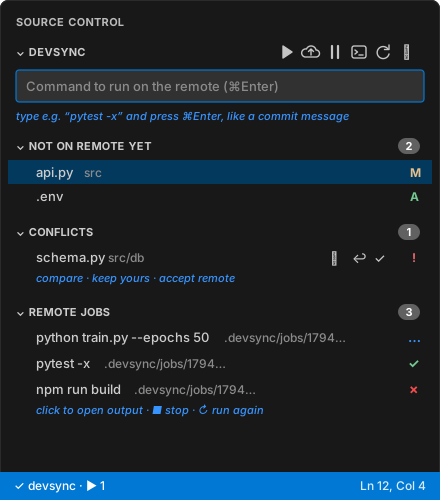
The extension adds a devsync panel to Source Control that works like
Git’s: type a command where you’d write a commit message, press ⌘Enter, and
it runs on the remote. It is a thin UI over the devsync CLI, so the editor,
your terminal and coding agents all share one sync engine and one results
folder.
Install
- Install the CLI (see Installation). The extension
finds
devsynconPATH, in~/.local/binor in~/.cargo/bin. - In VS Code: Extensions (⇧⌘X) → ⋯ → Install from VSIX… →
choose
devsync-<version>.vsix(from a release, ormake vscode). - A Get started with devsync walkthrough opens; it is also under Help → Welcome.
Connect a project
Open the project folder, then run devsync: Connect Project to Remote…
(also offered in the Source Control view) and enter you@server:~/myproject.
Accept Run Doctor to check the connection; it also installs devsync’s
helper on the remote.
The devsync panel
Open Source Control (⌃⇧G). The devsync section has:
| Part | What it’s for |
|---|---|
| Command box | Type a command, press ⌘Enter / Ctrl+Enter: it syncs, then runs in a terminal on the remote, in the folder of the file you have open |
| Not on remote yet | Local changes not sent yet, marked A (added), M (modified), D (deleted, when sync.delete is on). Click to open. With auto sync this list empties a moment after you save; when offline it shows what’s queued |
| Conflicts | A remote command changed a file you also edited. Your file is kept; the remote version is next to it. Buttons: ⇄ Compare, ↩ Keep yours, ✓ Accept remote |
| Remote jobs | The last 20 commands, marked ✓ (exit 0), ✗ (failed), … (running), ? (lost). Click to open the output; ■ stops a running job, ↻ runs it again |
Toolbar: ▶ run · ⬇ pull from remote · ☁ push now · ⏸ pause / ⟳ resume auto sync · terminal · refresh. Under ⋯: run in background, run again, collect results, forward ports, status, doctor, Claude Code setup, Getting Started.
The devsync sidebar (Activity Bar)
The extension also adds a devsync icon to the Activity Bar (the left bar, under Explorer, Search, Source Control…). Its sidebar has the same lists plus a bigger Run box:
| Section | What it’s for |
|---|---|
| Run | A status card (state, remote address, files not on the remote, running jobs; Retry now with a countdown while offline), a live progress card while pushing or pulling (bar, files and bytes done, speed, time left, current file), Pull All / Push / Pull Files… / Choose Sync…, the command box (▶ Run on Remote, Background, Terminal), Activity (files recently pushed ↑, pulled ↓ or deleted ✕; click to open) and Recent commands. Enter runs; ⌘Enter runs in the background; Shift+Enter adds a line |
| Not on Remote Yet | Files whose content differs from the remote’s (A/M/D, like Source Control), with Pull, Pull Files…, Push and Pause/Resume buttons. Files identical on both sides are never listed, even before the first sync has finished |
| Conflicts | Appears only when there are conflicts |
| Remote Files | The remote project, one folder at a time, with sizes. Check a folder to sync and download it; uncheck to stop syncing it (it stays on the remote). Nothing is hashed while browsing |
| Remote Jobs | ✓ / ✗ / spinner for each job; click for output; ■ stop, ↻ run again |
The icon shows a count badge: changes not yet on the remote, plus conflicts. ⌘⌥D / Ctrl+Alt+D opens the sidebar with the cursor in the Run field.
You can drag the icon to reorder it, or drag the devsync sections into the
Secondary Side Bar. If you only want the sidebar, set
devsync.sourceControl to false to hide devsync from the Source Control view.
Seeing what changed (diffs)
Click a file under Not on Remote Yet to see a diff like Git’s: the remote’s copy on the left, yours on the right. New files diff against an empty file. The ⇄ button on each row does the same.
The remote’s git repository: Git (remote)
If the remote project is a git repository, devsync’s entry in Source Control works like VS Code’s own Git, but on the remote’s repository (one entry per project; devsync’s own lists appear below the git ones, only when they have something to show). The input box becomes the commit message, and ▶ in the title bar runs a command instead:
- Changes and Staged Changes with the usual M / A / D / R / U letters. Click a file for a diff (last committed or staged version ↔ yours).
- + stages, − unstages, ↶ discards (with confirmation). Group headers stage or unstage everything.
- Type a message and press ⌘Enter / Ctrl+Enter to commit. If nothing is
staged, it offers to stage everything first (
devsync.git.smartCommitskips the question). - Status bar: the remote branch (click to switch or create a branch) and a sync button with ahead/behind counts (pull, then push).
- ⋯ menu: Pull, Push, Fetch, Sync, Commit All, Checkout to…, Show History.
- ⋯ menu, organized like Git’s: Commit (staged, all, amend, undo last commit, signed off, no verify, empty), Changes (stage/unstage all, tracked/untracked, discard all, clean untracked), Pull, Push (sync, pull, pull rebase, pull from, push, push to, force push with lease, fetch, fetch all), Branch (checkout, detached, create, create from, rename, delete, publish, merge, rebase, abort), Remote (add, remove), Stash (stash, include untracked, staged only, apply/pop latest or a chosen one, drop, drop all, view), Tags (create, delete, push).
- In the editor: gutter bars for changes against the staged version on
the remote (click for the inline diff, with Revert), the author and age of
the current line in the status bar (remote
git blame; click for commit actions;devsync.git.blame), and Open File History / Open File (HEAD) on the editor tab and Explorer right-click menus. - Auto fetch:
devsync.git.autofetch(everydevsync.git.autofetchPeriodseconds). Initialize Repository on Remote when there is none yet. - Graph (remote), below it in Source Control: the remote branch’s history with lanes and merges, drawn like VS Code’s Graph: unpushed commits in the branch color, the upstream in the remote color, ⊚ on the current commit, an Outgoing/Incoming Changes row (click: all unpushed/unpulled changes). Hover a commit for the full message, co-authors, stats and Open on GitHub; click it to open all of its changes side by side; right-click for commit actions (cherry-pick, revert, reset, branch/tag from here, checkout, copy). Buttons: Fetch, Pull, Push, Refresh. (VS Code’s own Graph only shows local repositories.)
Your local edits are pushed before every git command, so git always sees
them. Commands that change files on the remote (checkout, pull, discard, …)
bring the result back here; files you edited and haven’t sent are never
overwritten. Turn the section off with devsync.git.enabled.
The same works from a terminal: devsync git status, devsync git commit -am "fix", devsync git checkout -b feature. devsync cat <file> prints the
remote’s copy of a file.
Seeing what is pushed or pulled
While files move, the status bar shows the direction and percentage
(☁↑ devsync 45% · 3/40; hover for size, speed and the current file), the
sidebar’s progress card shows the details, and manual Push/Pull also show a
notification with a progress bar. Every transferred file is added to
Activity.
When the remote can’t be reached
Auto sync keeps your changes and retries with backoff (up to every 30 s). To try immediately: Retry now in the sidebar’s status card, in the status-bar menu or its tooltip, or devsync: Retry Connection Now.
Pulling from the remote
- ⬇ Pull All (sidebar) or Pull Everything from Remote: get every remote change. Your edits are never overwritten; conflicts appear under Conflicts.
- Pull Files…: choose remote files or folders from a searchable list (changes only by default; the list button shows everything).
- Right-click a file or folder in the Explorer, or an editor tab, then choose devsync: Pull from Remote for just that item.
Status bar
| Shows | Meaning |
|---|---|
✓ devsync | Remote matches your files |
☁↑ devsync: changes | Saved changes about to be sent |
⟳ devsync: syncing | Sending |
☁ devsync: offline | Can’t reach the remote; changes are queued and retried (yellow) |
⏸ devsync: paused | Auto sync is off; use Push |
· ▶ 2 | Two remote jobs running |
Click it for a menu with every action.
Running things
- Quick runs go through the command box. ⌘⌥R / Ctrl+Alt+R (or ▶ in the editor title bar) re-runs the last command; bind it to any key you like.
- Long runs: ⋯ → Run on Remote in Background. The job runs without holding a connection. Its output file opens and fills in as it runs, and you’re notified when it finishes.
- Remote terminal: the terminal button, or the devsync remote terminal profile in the terminal + ▾ menu.
- Ports: ⋯ → Forward Ports exposes
exec.portson localhost.
Settings
| Setting | Default | |
|---|---|---|
devsync.binaryPath | "" | Path to devsync. Empty: searches PATH, ~/.local/bin, ~/.cargo/bin, /usr/local/bin, /opt/homebrew/bin |
devsync.autoSync | true | Send every save automatically when a devsync project opens |
devsync.sourceControl | true | Also show devsync in the Source Control view (the Activity Bar sidebar is always there) |
devsync.openOutputOnBackgroundRun | true | Open a background job’s output when it starts |
The extension activates in any workspace containing a .devsync.toml. Logs
are under View → Output → devsync.
Ports, shells and pulling files
Port forwarding
Reach a server running on the remote from your browser or curl:
devsync forward 3000 8000
localhost:3000 and localhost:8000 now connect to the same ports on the
remote. If the tunnel drops, it is re-established with backoff; press Ctrl-C
to stop. With no arguments it forwards exec.ports from the config:
[exec]
ports = [3000]
A typical dev-server setup:
devsync submit -- npm run dev
devsync forward 3000
Interactive shell
devsync shell
Opens a login shell on the remote in the directory matching your current
one. This is a normal interactive ssh session, so unlike exec it ends if
the connection drops. Use it for quick poking around, not for long-running
work.
Pulling code from the remote
The whole project, safely:
devsync pull
devsync pull --dry-run
devsync pull brings the remote’s changes into your folder:
| On the remote | Locally | Result |
|---|---|---|
| new file | missing | downloaded |
| changed | unchanged since your last sync | updated to the remote version |
| changed | you edited it too | your version kept; remote saved as <file>.devsync-remote |
Sync excludes apply (node_modules, .venv, … are not downloaded), and
nothing you edited is ever overwritten. Run it, review any
.devsync-remote files, then push as usual. In VS Code: ⬇ Pull from
Remote in the devsync sidebar or the Source Control toolbar.
See what’s on the remote first:
devsync ls --changed
devsync ls src/api
devsync ls --all
| Marker | Meaning |
|---|---|
+ | only on the remote |
~ | changed on the remote (you haven’t touched your copy) |
! | changed on both sides |
= | identical |
--changed hides identical files; --all also lists paths excluded by
sync.ignore or .gitignore.
Only some files or folders:
devsync pull src/api
devsync pull src/api/models.py tests/
devsync pull --dry-run src/
devsync pull --force config/settings.py
The same safety rules apply to just those paths. --force overwrites your
edits with the remote version instead of saving *.devsync-remote. Named
paths are pulled even if sync.ignore or .gitignore excludes them; the
built-in excludes (.git, node_modules, .venv, caches) and
.devsyncignore always apply.
Copy somewhere else instead:
devsync pull results/ --to ~/Downloads
--to copies the remote files exactly into another directory (here
~/Downloads/results/…) without touching your project.
In VS Code:
- right-click files or folders in the Explorer, or an editor tab, then choose devsync: Pull from Remote;
- Pull Files… (devsync sidebar, or the command palette) opens a searchable list of remote changes, including files you don’t have yet, with folders at the top. Select several with Space and press Enter. The list button switches to all remote files.
Working over flaky networks
devsync assumes the network will fail. This page lists what happens in each situation.
| Situation | What happens |
|---|---|
Network down when you run push/exec | Retries with exponential backoff (0.5 s up to 30 s, with jitter) until it works, with a message on each retry. Set sync.retries to give up after N attempts |
| Connection drops during an upload | The partial file stays staged on the remote; the next attempt resumes from where it stopped. Nothing half-written ever appears in the project |
| Connection drops while a command runs | Nothing happens to the command. Output collection pauses and resumes; no output is lost or duplicated |
| Laptop sleeps during a long job | Same as above: run devsync logs <id> when you’re back |
| Connection drops right as a command is being started | devsync can’t know whether the request reached the remote, so it won’t risk starting it twice. It tells you to check devsync jobs --remote |
devsync watch while offline | Keeps watching, marks changes pending, shows offline, and sends everything once the link is back |
| ssh hangs (half-open TCP) | Keepalives detect a dead link in ~15 s; each response also has a timeout (ssh.response_timeout_secs) |
| Remote rebooted mid-job | The job shows as lost |
| Wrong password, key or host key | Not retried; reported immediately with a hint |
| The shared ssh connection breaks (network change, dead TCP, server session limit) | devsync closes it and opens a fresh one; if that fails too it connects directly for 5 minutes | | An agent upload is cut off | The upload is checked before it’s installed; a truncated agent already on the remote is detected by size and replaced. Uploads are gzip-compressed, and local devsync processes take turns uploading | | devsync is updated while VS Code’s auto sync runs | The extension notices the new binary and restarts auto sync on it |
On high-latency links (VPNs, Tailscale relays) each new ssh connection can
take 10–20 s, while sessions on the shared connection cost one round trip.
Keep ssh.multiplex = true and a long ssh.control_persist_secs (default
600) so the connection setup is paid rarely.
Retrying now
While offline, devsync watch says when it will try next. Press Enter in
its terminal to retry immediately (VS Code: Retry now). One-off commands
(push, pull, exec) retry on their own with backoff.
Seeing progress
In a terminal, pushes and pulls draw a live line with a progress bar, files
and bytes done, speed, time left and the current file. Up to 200 files are
also listed one per line (all of them with -v). Set DEVSYNC_NO_PROGRESS=1
to turn the live line off. With --json, progress events carry the same
numbers.
Remote terminals
devsync shell (and Terminal in VS Code) is the one place an ssh
session stays open, so on a bad link it will drop. When it does, devsync
says so and reconnects into the same folder, waiting longer each time
(Ctrl-C to stop).
To keep the shell itself, and whatever runs in it, alive across drops,
set ssh.persistent_shell = true. With tmux installed on the remote, the
shell runs in a tmux session (status bar hidden, mouse scrolling on) and
reconnecting attaches to it again. For long jobs, devsync exec /
devsync submit are still the most robust: they need no open connection
at all.
Tuning
[ssh]
connect_timeout_secs = 60       # slow links / satellite (devsync also raises it by itself after a timeout)
response_timeout_secs = 300     # huge trees on slow disks
multiplex = true                # reuse one TCP connection for short sessions
control_persist_secs = 600      # keep that connection this long when idle

[sync]
retries = 0                     # 0 = keep trying; e.g. 5 to fail fast in scripts
Multiplexing saves an ssh handshake per operation. If your network kills idle
connections aggressively, lower control_persist_secs; correctness never
depends on it.
Mobile hotspots, VPNs, captive portals
- If the IP changes (hotspot to Wi-Fi), the next session simply connects again. Running jobs are unaffected.
- If ssh access needs a VPN, connect it first. While it’s down, devsync waits and retries.
- Jump hosts work through
~/.ssh/config(ProxyJump) orssh.options = ["ProxyJump=bastion"].
Command line
Every command accepts the global options -C <dir> (run as if started in
<dir>), --json (machine-readable output), -v (verbose) and -q
(quiet). Commands find the project by looking for .devsync.toml in the
current directory and its parents.
| Command | Purpose |
|---|---|
init | Create .devsync.toml in the current directory |
push | Make the remote tree match the local one |
watch | Push on every save; collect results of running jobs. Keeps working offline |
exec | Sync, run a command remotely, show its output, pull back changed files [alias: run] |
submit | Sync and start a command remotely without waiting; prints the job id [alias: bg] |
logs | Show a job’s output (default: the latest job), following it while it runs |
jobs | List jobs |
kill | Stop a running job (default: the latest) |
collect | Fetch output of running jobs into .devsync/jobs/ once, then exit |
pull | Get code from the remote: the whole project, or specific files/folders |
ls | List files on the remote and how they compare with yours |
cat | Print the remote version of a file (for diffs). Exits 1 if the remote doesn’t have it [alias: show] |
git | Run git in the remote project, as if you were there |
tree | Browse the remote project one folder at a time: sizes, file counts and what is synced. Nothing is hashed; huge folders show lower bounds |
select | Choose what to sync: add files or folders to the selection |
unselect | Stop syncing files or folders (they stay untouched on the remote) |
status | Configuration, connectivity and pending changes |
changes | Local changes not yet on the remote, like git status (no network) |
doctor | Check the whole setup end to end and explain problems |
forward | Forward remote ports to localhost (reconnects automatically) |
shell | Interactive shell in the matching remote directory |
setup | Install coding-agent integration |
completions | Print shell completions |
devsync
Edit locally, run remotely. Sync and remote execution built for flaky connections.

Usage: devsync [OPTIONS] <COMMAND>

Commands:
  init         Create .devsync.toml in the current directory
  push         Make the remote tree match the local one
  watch        Push on every save; collect results of running jobs. Keeps working offline
  exec         Sync, run a command remotely, show its output, pull back changed files [alias: run]
  submit       Sync and start a command remotely without waiting; prints the job id [alias: bg]
  logs         Show a job's output (default: the latest job), following it while it runs
  jobs         List jobs
  kill         Stop a running job (default: the latest)
  collect      Fetch output of running jobs into .devsync/jobs/ once, then exit
  pull         Get code from the remote: the whole project, or specific files/folders
  ls           List files on the remote and how they compare with yours
  cat          Print the remote version of a file (for diffs). Exits 1 if the remote doesn't have it [alias: show]
  git          Run git in the remote project, as if you were there
  tree         Browse the remote project one folder at a time: sizes, file counts and what is synced. Nothing is hashed; huge folders show lower bounds
  select       Choose what to sync: add files or folders to the selection
  unselect     Stop syncing files or folders (they stay untouched on the remote)
  status       Configuration, connectivity and pending changes
  changes      Local changes not yet on the remote, like `git status` (no network)
  doctor       Check the whole setup end to end and explain problems
  forward      Forward remote ports to localhost (reconnects automatically)
  shell        Interactive shell in the matching remote directory
  setup        Install coding-agent integration
  completions  Print shell completions
  help         Print this message or the help of the given subcommand(s)

Options:
  -C, --dir <DIR>  Run as if started in this directory
      --json       Machine-readable output (NDJSON events / JSON results)
  -v, --verbose    Show every file transferred and connection details
  -q, --quiet      Only errors and warnings
  -h, --help       Print help
  -V, --version    Print version

Start with: devsync init user@host:~/project   then: devsync exec -- <command>
devsync init
Create .devsync.toml in the current directory

Usage: devsync init [OPTIONS] <TARGET>

Arguments:
  <TARGET>  user@host:/remote/path (or local:/path for a local agent)

Options:
  -C, --dir <DIR>  Run as if started in this directory
      --force      Overwrite an existing config
      --json       Machine-readable output (NDJSON events / JSON results)
  -v, --verbose    Show every file transferred and connection details
  -q, --quiet      Only errors and warnings
  -h, --help       Print help
devsync push
Make the remote tree match the local one

Usage: devsync push [OPTIONS]

Options:
  -C, --dir <DIR>  Run as if started in this directory
  -n, --dry-run    Show what would change without transferring
      --force      Allow deleting more than sync.max_delete remote files
      --json       Machine-readable output (NDJSON events / JSON results)
  -v, --verbose    Show every file transferred and connection details
  -q, --quiet      Only errors and warnings
  -h, --help       Print help
devsync watch
Push on every save; collect results of running jobs. Keeps working offline

Usage: devsync watch [OPTIONS]

Options:
  -C, --dir <DIR>  Run as if started in this directory
      --json       Machine-readable output (NDJSON events / JSON results)
  -v, --verbose    Show every file transferred and connection details
  -q, --quiet      Only errors and warnings
  -h, --help       Print help
devsync exec
Sync, run a command remotely, show its output, pull back changed files

Usage: devsync exec [OPTIONS] <COMMAND>...

Arguments:
  <COMMAND>...  Command (use `--` before it if it has flags)

Options:
  -C, --dir <DIR>     Run as if started in this directory
      --no-push       Skip the sync before running
      --json          Machine-readable output (NDJSON events / JSON results)
      --no-pull-back  Do not bring back files the command changed
  -v, --verbose       Show every file transferred and connection details
  -q, --quiet         Only errors and warnings
  -h, --help          Print help
devsync submit
Sync and start a command remotely without waiting; prints the job id

Usage: devsync submit [OPTIONS] <COMMAND>...

Arguments:
  <COMMAND>...

Options:
  -C, --dir <DIR>  Run as if started in this directory
      --no-push
      --json       Machine-readable output (NDJSON events / JSON results)
  -v, --verbose    Show every file transferred and connection details
  -q, --quiet      Only errors and warnings
  -h, --help       Print help
devsync logs
Show a job's output (default: the latest job), following it while it runs

Usage: devsync logs [OPTIONS] [ID]

Arguments:
  [ID]

Options:
  -C, --dir <DIR>  Run as if started in this directory
      --no-follow  Print what has been collected so far and exit
      --json       Machine-readable output (NDJSON events / JSON results)
  -v, --verbose    Show every file transferred and connection details
  -q, --quiet      Only errors and warnings
  -h, --help       Print help
devsync jobs
List jobs

Usage: devsync jobs [OPTIONS]

Options:
  -C, --dir <DIR>  Run as if started in this directory
      --remote     Ask the remote instead of the local results folder
      --json       Machine-readable output (NDJSON events / JSON results)
  -v, --verbose    Show every file transferred and connection details
  -q, --quiet      Only errors and warnings
  -h, --help       Print help
devsync kill
Stop a running job (default: the latest)

Usage: devsync kill [OPTIONS] [ID]

Arguments:
  [ID]

Options:
  -C, --dir <DIR>  Run as if started in this directory
      --json       Machine-readable output (NDJSON events / JSON results)
  -v, --verbose    Show every file transferred and connection details
  -q, --quiet      Only errors and warnings
  -h, --help       Print help
devsync collect
Fetch output of running jobs into .devsync/jobs/ once, then exit

Usage: devsync collect [OPTIONS]

Options:
  -C, --dir <DIR>  Run as if started in this directory
      --json       Machine-readable output (NDJSON events / JSON results)
  -v, --verbose    Show every file transferred and connection details
  -q, --quiet      Only errors and warnings
  -h, --help       Print help
devsync pull
Get code from the remote: the whole project, or specific files/folders.

Files that are new on the remote, or that you haven't edited since the last sync, are updated. Files you edited keep your version and the remote one is saved as <file>.devsync-remote (use --force to overwrite instead). Without paths the whole project is pulled and sync excludes apply; named paths are pulled even if excluded by `sync.ignore` or .gitignore. Built-in excludes (.git, node_modules, .venv, caches) and .devsyncignore always apply.

Examples: `devsync pull`, `devsync pull src/api tests/test_api.py`, `devsync pull results/ --to ~/Downloads`.

Usage: devsync pull [OPTIONS] [PATHS]...

Arguments:
  [PATHS]...
          Remote files or directories, relative to the project (omit for everything)

Options:
  -C, --dir <DIR>
          Run as if started in this directory

      --force
          Overwrite local edits with the remote version

      --json
          Machine-readable output (NDJSON events / JSON results)

      --to <DIR>
          Copy the paths into another local directory instead (exact copy)

  -n, --dry-run
          Show what would change without downloading

  -v, --verbose
          Show every file transferred and connection details

  -q, --quiet
          Only errors and warnings

  -h, --help
          Print help (see a summary with '-h')
devsync ls
List files on the remote and how they compare with yours.

Markers: + only on the remote, ~ changed on the remote, ! changed on both sides, = identical.

Usage: devsync ls [OPTIONS] [PATHS]...

Arguments:
  [PATHS]...
          Only under these remote paths

Options:
  -c, --changed
          Only files that differ from your copy (+, ~, !)

  -C, --dir <DIR>
          Run as if started in this directory

  -a, --all
          Include paths excluded by `sync.ignore` / .gitignore (built-in excludes and .devsyncignore always apply)

      --json
          Machine-readable output (NDJSON events / JSON results)

  -v, --verbose
          Show every file transferred and connection details

  -q, --quiet
          Only errors and warnings

  -h, --help
          Print help (see a summary with '-h')
devsync tree
Browse the remote project one folder at a time: sizes, file counts and what is synced. Nothing is hashed; huge folders show lower bounds

Usage: devsync tree [OPTIONS] [PATH]

Arguments:
  [PATH]  Remote folder, relative to the project (default: the project root)

Options:
  -C, --dir <DIR>  Run as if started in this directory
      --json       Machine-readable output (NDJSON events / JSON results)
  -v, --verbose    Show every file transferred and connection details
  -q, --quiet      Only errors and warnings
  -h, --help       Print help
devsync select
Choose what to sync: add files or folders to the selection.

Without arguments, shows the current selection. Unselected paths are neither scanned nor synced, and stay untouched on the remote.

Usage: devsync select [OPTIONS] [PATHS]...

Arguments:
  [PATHS]...


Options:
  -C, --dir <DIR>
          Run as if started in this directory

      --pull
          Download the selected paths right away

      --all
          Go back to syncing everything

      --json
          Machine-readable output (NDJSON events / JSON results)

  -v, --verbose
          Show every file transferred and connection details

  -q, --quiet
          Only errors and warnings

  -h, --help
          Print help (see a summary with '-h')
devsync unselect
Stop syncing files or folders (they stay untouched on the remote)

Usage: devsync unselect [OPTIONS] <PATHS>...

Arguments:
  <PATHS>...

Options:
  -C, --dir <DIR>  Run as if started in this directory
      --json       Machine-readable output (NDJSON events / JSON results)
  -v, --verbose    Show every file transferred and connection details
  -q, --quiet      Only errors and warnings
  -h, --help       Print help
devsync status
Configuration, connectivity and pending changes

Usage: devsync status [OPTIONS]

Options:
  -C, --dir <DIR>  Run as if started in this directory
      --json       Machine-readable output (NDJSON events / JSON results)
  -v, --verbose    Show every file transferred and connection details
  -q, --quiet      Only errors and warnings
  -h, --help       Print help
devsync changes
Local changes not yet on the remote, like `git status` (no network)

Usage: devsync changes [OPTIONS]

Options:
  -C, --dir <DIR>  Run as if started in this directory
      --json       Machine-readable output (NDJSON events / JSON results)
  -v, --verbose    Show every file transferred and connection details
  -q, --quiet      Only errors and warnings
  -h, --help       Print help
devsync doctor
Check the whole setup end to end and explain problems

Usage: devsync doctor [OPTIONS]

Options:
  -C, --dir <DIR>  Run as if started in this directory
      --json       Machine-readable output (NDJSON events / JSON results)
  -v, --verbose    Show every file transferred and connection details
  -q, --quiet      Only errors and warnings
  -h, --help       Print help
devsync forward
Forward remote ports to localhost (reconnects automatically)

Usage: devsync forward [OPTIONS] [PORTS]...

Arguments:
  [PORTS]...  Ports (default: exec.ports from the config)

Options:
  -C, --dir <DIR>  Run as if started in this directory
      --json       Machine-readable output (NDJSON events / JSON results)
  -v, --verbose    Show every file transferred and connection details
  -q, --quiet      Only errors and warnings
  -h, --help       Print help
devsync shell
Interactive shell in the matching remote directory

Usage: devsync shell [OPTIONS]

Options:
  -C, --dir <DIR>  Run as if started in this directory
      --json       Machine-readable output (NDJSON events / JSON results)
  -v, --verbose    Show every file transferred and connection details
  -q, --quiet      Only errors and warnings
  -h, --help       Print help
devsync setup
Install coding-agent integration

Usage: devsync setup [OPTIONS] <WHAT>

Arguments:
  <WHAT>
          Possible values:
          - claude:    Claude Code hook + CLAUDE.md instructions
          - agents-md: AGENTS.md instructions (Codex, Cursor, others)
          - all:       Everything above

Options:
  -C, --dir <DIR>
          Run as if started in this directory

      --json
          Machine-readable output (NDJSON events / JSON results)

  -v, --verbose
          Show every file transferred and connection details

  -q, --quiet
          Only errors and warnings

  -h, --help
          Print help (see a summary with '-h')
devsync completions
Print shell completions

Usage: devsync completions [OPTIONS] <SHELL>

Arguments:
  <SHELL>  [possible values: bash, elvish, fish, powershell, zsh]

Options:
  -C, --dir <DIR>  Run as if started in this directory
      --json       Machine-readable output (NDJSON events / JSON results)
  -v, --verbose    Show every file transferred and connection details
  -q, --quiet      Only errors and warnings
  -h, --help       Print help
Configuration reference
devsync init user@host:path writes .devsync.toml at the project root.
Commands work from any subdirectory, and remote commands run in the matching
remote subdirectory. Unknown keys are rejected so typos surface immediately.
[remote]
| Key | Default | Description |
|---|---|---|
host | (required) | user@host, an alias from ~/.ssh/config, or local (agent on this machine: VMs with shared folders, containers, tests) |
path | (required) | Project directory on the remote. ~ is the remote home; relative paths are relative to it. Created if missing |
[ssh]
| Key | Default | Description |
|---|---|---|
port | ssh default | |
identity | ssh default | Private key file |
options | [] | Extra -o options, e.g. ["ProxyJump=bastion", "Compression=yes"] |
multiplex | true | Reuse one TCP connection across devsync’s short sessions (ControlMaster). Sessions stay short either way |
control_persist_secs | 600 | Idle time before that shared connection closes. On high-latency links (VPNs, Tailscale relays) a long value avoids paying the connection setup again |
connect_timeout_secs | 30 | Time allowed to reach the server. If connecting times out, devsync doubles it for that host (up to 120 s, remembered for a day), since VPNs like Tailscale can take many seconds to find a route |
persistent_shell | false | devsync shell runs inside tmux on the remote (if installed): the shell and anything running in it survive disconnects, and reconnecting reattaches |
response_timeout_secs | 120 | Max wait for any single agent response before the session is abandoned and retried |
Everything in ~/.ssh/config (users, keys, jump hosts) applies as usual.
Login must not prompt: devsync runs ssh with BatchMode=yes.
[sync]
| Key | Default | Description |
|---|---|---|
use_gitignore | false | false: files matched by .gitignore (.env, local configs, data) are synced. true: they are skipped |
ignore | [] | Extra exclude patterns (gitignore syntax) |
include | [] | Sparse sync: only these paths (files or folders) are synced; others are not even scanned. [] = everything. Edited by devsync select |
large_remote_limit_mb | 1024 | If nothing is chosen yet and the remote is bigger than this, the first sync / a whole pull stops and asks what to sync. 0 = never ask |
initial_pull | true | On this machine’s first sync, download files that exist only on the remote (differing files are kept locally and saved as <file>.devsync-remote) before pushing |
delete | false | Delete remote files that were deleted locally |
max_delete | 200 | Refuse larger deletions unless devsync push --force |
retries | 0 | Attempts for network operations; 0 retries until the link is back |
Always excluded: .git, .hg, .svn, .devsync, .devsync-agent,
node_modules, __pycache__, *.pyc, .venv, venv, .mypy_cache,
.pytest_cache, .ruff_cache, .DS_Store, .idea, and devsync’s own .devsync.toml, conflict copies (*.devsync-remote) and temp files.
.devsyncignore files (gitignore syntax, any directory) add more excludes.
Excluded files are left alone on the remote, even with delete = true.
[exec]
| Key | Default | Description |
|---|---|---|
pull_back | true | Copy back files a remote command created or changed. Never overwrites local edits; conflicts go to <file>.devsync-remote |
prelude | "" | Shell snippet run before every command, e.g. source ~/.nvm/nvm.sh or conda activate ml |
ports | [] | Ports devsync forward exposes on localhost |
local_commands | [] | Extra commands the agent hook keeps local (e.g. ["make"] if make only formats) |
remote_commands | [] | Extra commands the agent hook always sends remote |
poll_interval_ms | 400 | Output poll interval while a job runs (backs off to 5x when idle) |
[exec.env]
Environment variables for remote commands:
[exec.env]
PYTHONUNBUFFERED = "1"
CUDA_VISIBLE_DEVICES = "0"
Commands run in a login shell (bash -l, or sh -l if bash is missing), so
~/.profile / ~/.bash_profile apply. Use prelude for anything only set
in interactive shells.
Environment variables
| Variable | Purpose |
|---|---|
DEVSYNC_LOG | Log filter, e.g. debug or devsync_transport=debug |
DEVSYNC_SSH | ssh binary to use |
DEVSYNC_AGENT_DIR | Directory containing devsync-<target-triple> agent builds |
NO_COLOR | Disable colored output |
Files devsync creates
| Path | Side | Contents |
|---|---|---|
.devsync/ | local (init adds it to .gitignore in git projects) | hash cache, sync snapshot, remote info, jobs/<id>/{command,output.log,status.json} |
.devsync-agent/ | remote project | hash cache, partial uploads, jobs/<id>/ |
~/.devsync/bin/ | remote home | agent binaries |
Architecture
Goals
- Editing (by people or agents) happens on the local machine only.
- Code runs on the remote machine and should feel like it ran locally: the same relative directory, live output, the real exit code, and generated files showing up locally.
- An unreliable network must never lose work, corrupt files, or kill a running command. Nothing may depend on a connection staying up.
Session model
There is no daemon and no persistent tunnel. Each operation opens one
session: a child process (ssh -T host '~/.devsync/bin/devsync-<v>-<hash> agent --stdio --root <path>') whose stdin/stdout carry protocol frames. The
session is closed as soon as the operation completes:
| Operation | Sessions |
|---|---|
| push | 1 per attempt (manifest, uploads, deletes) |
| exec | push + 1 to submit + 1 per output poll + 1 for pull-back |
| submit | push + 1 |
| collect / watch tick | 1 for all unfinished jobs |
If ssh multiplexing is enabled (ssh.multiplex, default), OpenSSH reuses one
TCP connection for consecutive sessions for control_persist_secs. This only
saves handshakes; correctness never depends on it.
Every session has a response timeout. ssh runs with BatchMode=yes (never
prompts), ServerAliveInterval=5, ServerAliveCountMax=3 (dead links are
detected in about 15 s) and a connect timeout.
Failures are classified (TransportError::is_transient): network errors,
timeouts and dropped sessions are retried with exponential backoff and ±20%
jitter (sync.retries, 0 = until it works). Authentication and host-key
errors are fatal and reported at once.
Protocol (devsync-proto)
Frames are a 4-byte big-endian length followed by a postcard payload (64 MiB
max). The client sends Requests and the agent answers each with one
Response, in order. Uploads are pipelined: up to 32 requests in flight
before waiting for acknowledgements, which is safe because acknowledgements
are tiny. The protocol version is checked in Hello. Agent binaries are
content-addressed, so client and agent always come from the same build.
Sync (devsync-fs, devsync-client::sync)
- Manifest. Both sides walk their tree with the same
IgnoreSpec: built-in excludes (VCS dirs,node_modules, virtualenvs, caches, devsync state),.devsyncignorefiles, config patterns, and.gitignoreonly whenuse_gitignore = true. Every entry carries a BLAKE3 hash. A per-side cache keyed on (size, mtime) avoids re-reading unchanged files, and entries modified within 2 s of the cache write are re-hashed to stay correct. - Plan. Upload entries whose content, kind or executable bit differ. Delete
remote-only entries only if
sync.deleteis on, and refuse more thanmax_deletewithout--force. - Transfer. Files are sent as 1 MiB lz4 chunks into
.devsync-agent/partial/<hash>. A new session first asks forPartialOffsetsand resumes from there.PutCommitre-hashes the staged file and atomically renames it into place, with mode and mtime. A mismatch (e.g. the file changed mid-upload) is reported as retryable. Ancestors that are files are replaced by directories and vice versa. Symlinks are recreated, never followed. - Snapshot. After a push,
.devsync/synced.v2.binrecords the hash of every file as the remote now has it. This is what makes pull-back safe.
Jobs (devsync-agent::jobs, devsync-client::jobs)
client                              agent                       supervisor (setsid)
JobStart ─────────────────────────▶ write jobs/<id>/{meta,env,cmd.sh}
                                    spawn `devsync agent run-job` ──▶ bash -l cmd.sh
◀──────────────────────── JobStarted{id}                            > output.log 2>&1
(session closed)                                                     child.pid
JobPoll{id, offset} ──────────────▶ read output.log[offset..]       … exit → exit_code
◀───────── JobOutput{state, data, next_offset}
(session closed; repeat with adaptive interval)
- The supervisor calls
setsid()and ignores SIGHUP, so neither the ssh session ending nor the network dropping affects the command. The command runs in its own process group soJobKillcan signal the whole tree (SIGTERM, then SIGKILL after 3 s). - A job is reported finished only once all of its output has been delivered.
If the supervisor vanishes without an exit code (e.g. a reboot), the job is
reported as
lost. - The client appends output to
.devsync/jobs/<id>/output.logand records state instatus.json. That folder is the source of truth forlogs,jobs, the VS Code view, and coding agents. - Submitting is not idempotent, so it is retried only when the connection
could not be opened. If the connection drops after the request was sent,
the user is told to check
devsync jobs. - Old jobs are garbage-collected on the agent (7 days, at most 200).
Pull-back
When a job finishes, JobChanges lists remote files (with the sync excludes
applied) whose mtime is at or after the job’s start. For each one:
| Local state | Action |
|---|---|
| same content as remote | nothing |
| equals the snapshot (unchanged since sync) or absent on both | download and replace atomically |
| edited locally since sync | download to <file>.devsync-remote and report a conflict |
Downloads are chunked, verified against the remote hash, and renamed into place.
Agent deployment (devsync-transport::deploy)
On first contact (or when the cached agent is missing), devsync:
- Runs
uname -smto learn the remote OS and architecture. - Picks a matching build. Linux uses the static musl binaries, linked with
the bundled
rust-lld, so no cross C toolchain is needed. A remote with the same OS and architecture as the client gets the client binary itself. - Uploads it to
~/.devsync/bin/devsync-<version>-<hash12>(temp file, then chmod, then rename) and records the name in.devsync/remote.json.
Command routing for agents (devsync-client::route)
A small shell lexer understands quotes, escapes, operators (&& || ; | &,
subshells), comments and heredocs. It extracts the first word of every
pipeline segment, skipping VAR=value assignments and wrappers such as
sudo, env and time. If every word is a known local command (git,
coreutils, grep/rg, editors, …), the command stays local. Anything else is
rewritten by the Claude Code hook to devsync exec -- '<original>'. Commands
that cannot be parsed default to remote, and a trailing # local /
# remote overrides the decision.
Security notes
- devsync only uses your ssh configuration and keys and opens no ports.
- The agent rejects absolute paths,
.., and writes into its own state directory. Job ids are validated. - Synced files keep their permission bits. Gitignored files such as
.envare synced by default because they are usually needed to run the code. Setuse_gitignore = trueor add patterns if a secret must stay local.
Comparison with other tools
devsync covers one workflow: edit here, run there, over an unreliable link. Many good tools overlap with parts of it.
| Editing stays local | Survives disconnects | Runs commands | Output/exit code back | Generated files back | Remote install | |
|---|---|---|---|---|---|---|
| devsync | yes | yes (detached jobs, resumable transfers) | yes | yes | yes, conflict-safe | none (auto-deployed) |
| VS Code Remote-SSH | no (edits on the remote) | no (editor freezes) | in remote terminal | yes | n/a | VS Code server |
| sshfs | no (files live remotely) | no (I/O hangs) | no | n/a | n/a | none |
ssh host cmd | n/a | no (command dies) | yes | yes | no | none |
| rsync (+ a watcher) | yes | retry by hand | no | no | by hand | rsync |
| Mutagen | yes | yes | no (sync and forwarding only) | no | two-way sync | auto-deployed agent |
| Unison | yes | partly | no | no | two-way sync | matching unison version |
| Syncthing | yes | yes | no | no | two-way sync | daemon on both sides |
| git push / pull | yes | retry by hand | via hooks | no | commit by hand | git |
When to use something else
- You want the editor running on the remote (huge repos, remote-only language servers): VS Code Remote-SSH, but only on a stable connection.
- You need true two-way sync (people editing on both sides): Mutagen or Unison.
- You only need to copy files once: rsync.
devsync works fine alongside these. For example, you can use devsync for running code and Mutagen for something else.
Troubleshooting
Start with:
devsync doctor
It checks the config, ssh, agent deployment, sync and remote execution, and
explains each failure. For more detail, add -v to any command, or set
DEVSYNC_LOG=debug.
command not found: devsync
The install directory isn’t on your PATH. See
Installation → PATH.
make: *** No rule to make target '#'
You pasted a command with a trailing # comment into zsh, which doesn’t
treat # as a comment in interactive shells by default. Run the command
without the comment, or enable comments with setopt interactivecomments in
~/.zshrc.
ssh refused: Permission denied / Host key verification failed
devsync runs ssh in batch mode and never prompts. Make this work without any prompt first:
ssh you@server true
- Password prompt: set up a key (
ssh-copy-id you@server) or load it into the agent (ssh-add). - New host: connect once by hand to accept the host key.
- Key in a non-default location: set
ssh.identityor use~/.ssh/config.
no devsync build for remote platform linux/x86_64
The agent binaries for the remote aren’t installed next to your devsync. From
a source checkout, run sh install.sh (it builds them), or set
DEVSYNC_AGENT_DIR to a folder containing devsync-x86_64-unknown-linux-musl.
agent was uploaded but cannot be executed
The remote home is probably mounted noexec, or the remote uses an
unsupported architecture. Check with ssh you@server 'uname -sm; mount | grep home'.
frame too large, or the remote “printed N bytes without starting the devsync agent”
Something in the remote shell’s startup files (~/.bashrc, ~/.profile,
/etc/profile.d/…) runs when ssh starts a non-interactive command.
devsync ignores anything those files print (banners, conda/nvm messages)
and sends nothing until its agent is running, so they can’t swallow its data. Remaining cases:
-
A startup file waits for input (a prompt,
read, a menu). The connection then times out. Make it run only in interactive shells, e.g. put it below this line in~/.bashrc:case $- in *i*) ;; *) return;; esac -
A startup file prints megabytes of output. Same fix.
ControlSocket … already exists, disabling multiplexing is harmless: two
devsync sessions started at the same moment, and one didn’t share the
connection.
“the remote project is large; choose what to sync”
The first sync, or a whole-project devsync pull, stopped before scanning
a big remote. Run devsync tree to see where the size is, then
devsync unselect data (or check/uncheck in VS Code’s Remote Files).
Auto sync continues once .devsync.toml changes. To sync everything anyway,
set sync.large_remote_limit_mb = 0.
Every operation is slow (10–20 s) on a VPN or Tailscale link
Opening an ssh connection is slow there; devsync reuses one shared
connection. Check ssh.multiplex = true, and raise
ssh.control_persist_secs (default 600; older configs may say 60). Check the
raw cost with ssh -v you@host true: the time before
“Connection established” is network setup.
A command works over ssh but not with devsync
devsync runs commands in a non-interactive login shell, which loads
~/.profile / ~/.bash_profile but not ~/.bashrc. Tools set up only in
.bashrc (nvm, conda, pyenv) need the prelude:
[exec]
prelude = "source ~/.nvm/nvm.sh"
Files I need on the remote aren’t there
devsync push --dry-run
If a file is missing from the list, it is excluded by a built-in rule,
a .devsyncignore, sync.ignore, or (with use_gitignore = true)
.gitignore. See Syncing files.
refusing to delete N remote files
With sync.delete = true, devsync stops before deleting more than
sync.max_delete files, which usually means the wrong directory or a mass
rename. Check with devsync push --dry-run, then use devsync push --force
if it’s intended.
A <file>.devsync-remote appeared
A remote command changed a file that you also changed locally, so devsync
kept your version and saved the remote one next to it. Compare the two, keep
what you want, and delete the .devsync-remote file.
A job shows lost
The remote supervisor disappeared without recording an exit code, which
usually means the remote rebooted or the process was killed by the OOM
killer. Whatever output was written is in .devsync/jobs/<id>/output.log.
The Claude Code hook doesn’t route commands
- Restart the Claude Code session, or open
/hooksonce. - Check
.claude/settings.jsoncontains aPreToolUsehook that callsdevsync hook claude, and that its path still exists (re-rundevsync setup claudeafter moving the binary). - Test the hook directly:
echo '{"tool_name":"Bash","cwd":"'"$PWD"'","tool_input":{"command":"pytest"}}' | devsync hook claude
It should print JSON containing devsync exec. An empty result means the
command was classified as local, or cwd isn’t inside a devsync project.
Reset local state
All local state is disposable:
rm -rf .devsync
You lose the local job history; the next push re-hashes files and compares them with the remote.
FAQ
Does anything need to be installed on the remote?
No. You need an ssh server and a POSIX shell. devsync uploads a static agent
binary (about 3 MB) to ~/.devsync/bin/ the first time, and again only when
you upgrade devsync.
Is it two-way sync?
No, on purpose. Your machine is the source of truth. Two-way sync means conflicts on every save; devsync only brings back what commands generate, and never overwrites your edits.
Why are my .gitignore’d files synced?
Because they’re usually what the code needs to run (.env, local configs,
data). Set sync.use_gitignore = true or list exclusions in
.devsyncignore. See Syncing files.
Is my .env safe?
devsync copies it over your own ssh connection to a machine you already log into, and keeps its permissions. If a secret must never leave your machine, exclude it.
Does it keep a connection open?
No. Every operation is a short ssh session. With ssh.multiplex = true,
OpenSSH may keep one idle TCP connection for control_persist_secs so the
next session starts faster, but nothing depends on it.
Can several machines use the same remote project?
Yes. Each pushes its own tree. Jobs started from one machine are visible to
the others through devsync jobs --remote and devsync logs <id>.
Can I use it with Docker or a VM on my machine?
Yes. With remote.host = "local", the agent runs on this machine against
remote.path, which is useful for a shared folder mounted into a VM or
container. Any host reachable over ssh (including containers running sshd)
works as a normal remote.
What about Windows?
The client and agent are Unix-only for now. WSL2 works as a client.
How big a project can it handle?
Scanning uses a hash cache, so after the first sync only changed files are read. Uploads are pipelined and compressed. Repositories with hundreds of thousands of files work; exclude build outputs and data you don’t need on the remote to keep scans fast.
How do I stop a runaway remote command?
devsync kill <id> (or Ctrl-C during devsync exec). It sends SIGTERM to the
command’s whole process group, then SIGKILL after 3 seconds.
Development
Layout
crates/
  devsync-proto/      wire protocol (frames, Request/Response)
  devsync-fs/         ignore rules, hashing + cache, sync plan, atomic writes
  devsync-agent/      remote endpoint and detached job supervisor
  devsync-transport/  ssh/local sessions, agent deployment, retry policy
  devsync-client/     push, pull-back, job collection, agent hook, config
  devsync-cli/        the `devsync` binary (client and agent) + e2e tests
extensions/vscode/    VS Code extension (TypeScript)
docs/                 this book (mdBook)
install.sh            installer (one-liner, release archives, source checkouts)
scripts/              docs generation, version bump, CI helpers
legacy/               original bash prototype (reference only)
Dependencies only point down the list: cli → client → transport → fs → proto, and agent → fs → proto.
Prerequisites
- Rust 1.88+ (
rustup) - For agents:
rustup target add x86_64-unknown-linux-musl aarch64-unknown-linux-musl(make agentsdoes this). Linking uses the bundledrust-lld, so no cross C toolchain is needed. Keep dependencies pure Rust so this keeps working. - Node.js 20+ for the VS Code extension
mdbookfor the docs (cargo install mdbook)
Everyday commands
make check                      # rustfmt --check, clippy -D warnings, all tests
cargo test -p devsync-client    # one crate
cargo run -- exec -- echo hi    # run the CLI from source
make agents                     # static Linux agents
make docs                       # build the book into docs/book
make docs-serve                 # live preview at http://localhost:3000
make vscode                     # build the .vsix
Tests
- Unit tests live next to the code (
#[cfg(test)]). crates/devsync-cli/tests/e2e.rsdrives the real binary:- against a
localagent (no ssh), covering sync rules, exec, pull-back conflicts, detached jobs and kill; - through a fake
sshscript that runs the remote side under a temporaryHOME, covering agent deployment and network outages.
- against a
No test needs network access or a real ssh server.
Trying it against a real server
cargo build && make agents
cd /some/project
/path/to/devsync/target/debug/devsync init you@server:~/scratch-project
/path/to/devsync/target/debug/devsync doctor
A debug client finds the release agents under target/<triple>/release/.
VS Code extension
cd extensions/vscode
npm install
npm run watch
Open extensions/vscode in VS Code and press F5 to start an Extension
Development Host. The extension only talks to the CLI (devsync --json …),
so most behaviour can be tested from the terminal.
Docs
The CLI reference page is generated from --help:
scripts/gen-cli-docs.sh > docs/src/reference/cli.md
CI fails if it’s out of date. Run it after changing any command or flag.
Coding guidelines
- Keep the session model intact: no operation may need a connection to outlive one request/response exchange batch. Long-running work belongs in jobs.
- Every write on either side goes through
devsync_fs::write(staged, then atomic rename). - Network errors must map to
TransportError::Connect,DisconnectedorTimeoutso they’re retried. Configuration and auth errors must not be. - New protocol messages need a
PROTOCOL_VERSIONbump if they change existing encodings. - User-facing output goes through
Events, so--jsonand the extension get it too.
Releasing
Releases are cut from main by pushing a version tag. CI does the rest.
Steps
-
Make sure
mainis green. -
Bump the version everywhere and roll the changelog:
scripts/bump-version.sh 0.2.0This updates the workspace
Cargo.toml,Cargo.lock,extensions/vscode/package.json, and turns## [Unreleased]inCHANGELOG.mdinto## [0.2.0] - <today>. -
Review and commit:
git diff git commit -am "chore: release 0.2.0" -
Tag and push:
git tag -a v0.2.0 -m "devsync 0.2.0"
git push origin main v0.2.0
What the release workflow does
.github/workflows/release.yml, triggered by v* tags:
- Verify: the tag matches the versions in
Cargo.tomlandpackage.json, and the full test suite passes. - Build release archives, each containing the client plus the static
Linux agents:
aarch64-apple-darwin,x86_64-apple-darwinx86_64-unknown-linux-musl,aarch64-unknown-linux-musl
- Package the VS Code extension (
.vsix). - Publish a GitHub Release with the archives, the
.vsix,SHA256SUMS, and release notes taken from the matchingCHANGELOG.mdsection. - Marketplaces (optional): if the repository secrets
VSCE_PAT(Visual Studio Marketplace) and/orOVSX_PAT(Open VSX) are set, the extension is published there too. Without them, those steps are skipped.
The docs site is redeployed from main by .github/workflows/docs.yml.
Versioning
devsync follows Semantic Versioning. Until 1.0, minor
versions may break the config format or the CLI; such changes are called out
in the changelog. The wire protocol has its own PROTOCOL_VERSION, and
agents are content-addressed, so mismatched client/agent pairs never talk to
each other.
Repository settings checklist
- Settings → Pages: source “GitHub Actions” (for the docs site).
- Settings → Code security: enable private vulnerability reporting
(referenced by
SECURITY.md) and Dependabot alerts. - Branch protection on
main: require the CI checks. - Secrets (optional):
VSCE_PAT,OVSX_PAT.