VS Code extension
The extension adds a devsync panel to Source Control that works like
Git’s: type a command where you’d write a commit message, press ⌘Enter, and
it runs on the remote. It is a thin UI over the devsync CLI, so the editor,
your terminal and coding agents all share one sync engine and one results
folder.
Install
- Install the CLI (see Installation). The extension
finds
devsynconPATH, in~/.local/binor in~/.cargo/bin. - In VS Code: Extensions (⇧⌘X) → ⋯ → Install from VSIX… →
choose
devsync-<version>.vsix(from a release, ormake vscode). - A Get started with devsync walkthrough opens; it is also under Help → Welcome.
Connect a project
Open the project folder, then run devsync: Connect Project to Remote…
(also offered in the Source Control view) and enter you@server:~/myproject.
Accept Run Doctor to check the connection; it also installs devsync’s
helper on the remote.
The devsync panel
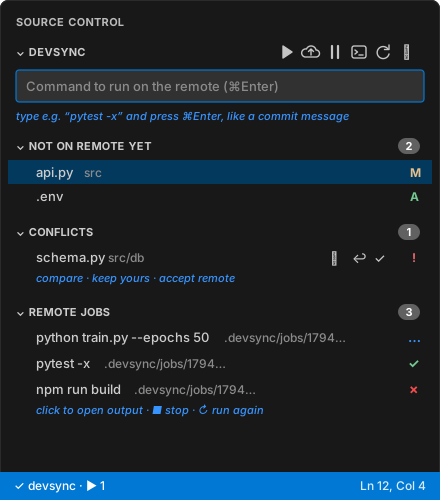
Open Source Control (⌃⇧G). The devsync section has:
| Part | What it’s for |
|---|---|
| Command box | Type a command, press ⌘Enter / Ctrl+Enter: it syncs, then runs in a terminal on the remote, in the folder of the file you have open |
| Not on remote yet | Local changes not sent yet, marked A (added), M (modified), D (deleted, when sync.delete is on). Click to open. With auto sync this list empties a moment after you save; when offline it shows what’s queued |
| Conflicts | A remote command changed a file you also edited. Your file is kept; the remote version is next to it. Buttons: ⇄ Compare, ↩ Keep yours, ✓ Accept remote |
| Remote jobs | The last 20 commands, marked ✓ (exit 0), ✗ (failed), … (running), ? (lost). Click to open the output; ■ stops a running job, ↻ runs it again |
Toolbar: ▶ run · ⬇ pull from remote · ☁ push now · ⏸ pause / ⟳ resume auto sync · terminal · refresh. Under ⋯: run in background, run again, collect results, forward ports, status, doctor, Claude Code setup, Getting Started.
The devsync sidebar (Activity Bar)
The extension also adds a devsync icon to the Activity Bar (the left bar, under Explorer, Search, Source Control…). Its sidebar has the same lists plus a bigger Run box:
| Section | What it’s for |
|---|---|
| Run | A status card (state, remote address, files not on the remote, running jobs; Retry now with a countdown while offline), a live progress card while pushing or pulling (bar, files and bytes done, speed, time left, current file), Pull All / Push / Pull Files… / Choose Sync…, the command box (▶ Run on Remote, Background, Terminal), Activity (files recently pushed ↑, pulled ↓ or deleted ✕; click to open) and Recent commands. Enter runs; ⌘Enter runs in the background; Shift+Enter adds a line |
| Not on Remote Yet | Files whose content differs from the remote’s (A/M/D, like Source Control), with Pull, Pull Files…, Push and Pause/Resume buttons. Files identical on both sides are never listed, even before the first sync has finished |
| Conflicts | Appears only when there are conflicts |
| Remote Files | The remote project, one folder at a time, with sizes. Check a folder to sync and download it; uncheck to stop syncing it (it stays on the remote). Nothing is hashed while browsing |
| Remote Jobs | ✓ / ✗ / spinner for each job; click for output; ■ stop, ↻ run again |
The icon shows a count badge: changes not yet on the remote, plus conflicts. ⌘⌥D / Ctrl+Alt+D opens the sidebar with the cursor in the Run field.
You can drag the icon to reorder it, or drag the devsync sections into the
Secondary Side Bar. If you only want the sidebar, set
devsync.sourceControl to false to hide devsync from the Source Control view.
Seeing what changed (diffs)
Click a file under Not on Remote Yet to see a diff like Git’s: the remote’s copy on the left, yours on the right. New files diff against an empty file. The ⇄ button on each row does the same.
The remote’s git repository: Git (remote)
If the remote project is a git repository, devsync’s entry in Source Control works like VS Code’s own Git, but on the remote’s repository (one entry per project; devsync’s own lists appear below the git ones, only when they have something to show). The input box becomes the commit message, and ▶ in the title bar runs a command instead:
- Changes and Staged Changes with the usual M / A / D / R / U letters. Click a file for a diff (last committed or staged version ↔ yours).
- + stages, − unstages, ↶ discards (with confirmation). Group headers stage or unstage everything.
- Type a message and press ⌘Enter / Ctrl+Enter to commit. If nothing is
staged, it offers to stage everything first (
devsync.git.smartCommitskips the question). - Status bar: the remote branch (click to switch or create a branch) and a sync button with ahead/behind counts (pull, then push).
- ⋯ menu: Pull, Push, Fetch, Sync, Commit All, Checkout to…, Show History.
- ⋯ menu, organized like Git’s: Commit (staged, all, amend, undo last commit, signed off, no verify, empty), Changes (stage/unstage all, tracked/untracked, discard all, clean untracked), Pull, Push (sync, pull, pull rebase, pull from, push, push to, force push with lease, fetch, fetch all), Branch (checkout, detached, create, create from, rename, delete, publish, merge, rebase, abort), Remote (add, remove), Stash (stash, include untracked, staged only, apply/pop latest or a chosen one, drop, drop all, view), Tags (create, delete, push).
- In the editor: gutter bars for changes against the staged version on
the remote (click for the inline diff, with Revert), the author and age of
the current line in the status bar (remote
git blame; click for commit actions;devsync.git.blame), and Open File History / Open File (HEAD) on the editor tab and Explorer right-click menus. - Auto fetch:
devsync.git.autofetch(everydevsync.git.autofetchPeriodseconds). Initialize Repository on Remote when there is none yet. - Graph (remote), below it in Source Control: the remote branch’s history with lanes and merges, drawn like VS Code’s Graph: unpushed commits in the branch color, the upstream in the remote color, ⊚ on the current commit, an Outgoing/Incoming Changes row (click: all unpushed/unpulled changes). Hover a commit for the full message, co-authors, stats and Open on GitHub; click it to open all of its changes side by side; right-click for commit actions (cherry-pick, revert, reset, branch/tag from here, checkout, copy). Buttons: Fetch, Pull, Push, Refresh. (VS Code’s own Graph only shows local repositories.)
Your local edits are pushed before every git command, so git always sees
them. Commands that change files on the remote (checkout, pull, discard, …)
bring the result back here; files you edited and haven’t sent are never
overwritten. Turn the section off with devsync.git.enabled.
The same works from a terminal: devsync git status, devsync git commit -am "fix", devsync git checkout -b feature. devsync cat <file> prints the
remote’s copy of a file.
Seeing what is pushed or pulled
While files move, the status bar shows the direction and percentage
(☁↑ devsync 45% · 3/40; hover for size, speed and the current file), the
sidebar’s progress card shows the details, and manual Push/Pull also show a
notification with a progress bar. Every transferred file is added to
Activity.
When the remote can’t be reached
Auto sync keeps your changes and retries with backoff (up to every 30 s). To try immediately: Retry now in the sidebar’s status card, in the status-bar menu or its tooltip, or devsync: Retry Connection Now.
Pulling from the remote
- ⬇ Pull All (sidebar) or Pull Everything from Remote: get every remote change. Your edits are never overwritten; conflicts appear under Conflicts.
- Pull Files…: choose remote files or folders from a searchable list (changes only by default; the list button shows everything).
- Right-click a file or folder in the Explorer, or an editor tab, then choose devsync: Pull from Remote for just that item.
Status bar
| Shows | Meaning |
|---|---|
✓ devsync | Remote matches your files |
☁↑ devsync: changes | Saved changes about to be sent |
⟳ devsync: syncing | Sending |
☁ devsync: offline | Can’t reach the remote; changes are queued and retried (yellow) |
⏸ devsync: paused | Auto sync is off; use Push |
· ▶ 2 | Two remote jobs running |
Click it for a menu with every action.
Running things
- Quick runs go through the command box. ⌘⌥R / Ctrl+Alt+R (or ▶ in the editor title bar) re-runs the last command; bind it to any key you like.
- Long runs: ⋯ → Run on Remote in Background. The job runs without holding a connection. Its output file opens and fills in as it runs, and you’re notified when it finishes.
- Remote terminal: the terminal button, or the devsync remote terminal profile in the terminal + ▾ menu.
- Ports: ⋯ → Forward Ports exposes
exec.portson localhost.
Settings
| Setting | Default | |
|---|---|---|
devsync.binaryPath | "" | Path to devsync. Empty: searches PATH, ~/.local/bin, ~/.cargo/bin, /usr/local/bin, /opt/homebrew/bin |
devsync.autoSync | true | Send every save automatically when a devsync project opens |
devsync.sourceControl | true | Also show devsync in the Source Control view (the Activity Bar sidebar is always there) |
devsync.openOutputOnBackgroundRun | true | Open a background job’s output when it starts |
The extension activates in any workspace containing a .devsync.toml. Logs
are under View → Output → devsync.